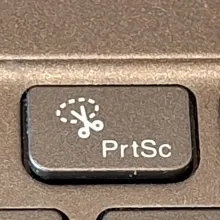
Taking a screenshot on Windows is quick and easy once you know the right shortcuts. Whether you’re using Windows 11 or Windows 10, this guide covers all the simple ways to capture your screen.
✅ Method 1: Print Screen (Full Screen)
Steps:
- Press the PrtScn key on your keyboard
- Open Paint, Word, or any image editor
- Press Ctrl + V to paste
- Save the screenshot
👉 This captures your entire screen.
🪟 Method 2: Windows + Print Screen (Auto Save)
Steps:
- Press Windows + PrtScn
- Screen will dim briefly
- Screenshot is automatically saved
📁 Location:
Pictures → Screenshots
🎯 Method 3: Alt + Print Screen (Active Window Only)
Steps:
- Click the window you want to capture
- Press Alt + PrtScn
- Paste it using Ctrl + V
👉 Only captures the active window—not the full screen.
✂️ Method 4: Snipping Tool (Best for Custom Screenshots)
Use the built-in Snipping Tool:
Steps:
- Press Windows + Shift + S
- Choose a snip type:
- Rectangular
- Freeform
- Window
- Full screen
- Select the area
- Click the notification to edit/save
👉 This is the most flexible method.
🎥 Method 5: Xbox Game Bar (For Apps & Games)
Steps:
- Press Windows + G
- Click the Capture button
- Take a screenshot
📁 Saved in:
Videos → Captures
⚠️ Troubleshooting
Print Screen not working?
- Try Fn + PrtScn (on laptops)
- Check keyboard settings
- Use Snipping Tool instead
Screenshots not saving?
- Check the Screenshots folder
- Ensure OneDrive isn’t redirecting files
🚀 Pro Tips
- Use Windows + Shift + S for fastest control
- Combine with cloud tools (OneDrive) for auto backup
- Edit screenshots quickly using Snipping Tool or Paint
👍 Summary
- PrtScn → Copy full screen
- Windows + PrtScn → Save automatically
- Alt + PrtScn → Active window only
- Windows + Shift + S → Custom snip
- Windows + G → Game screenshots
🎯 Final Thoughts
Taking screenshots on Windows is simple once you know the shortcuts. For most users, Windows + Shift + S offers the best balance of speed and control. Try each method and use the one that fits your workflow.